
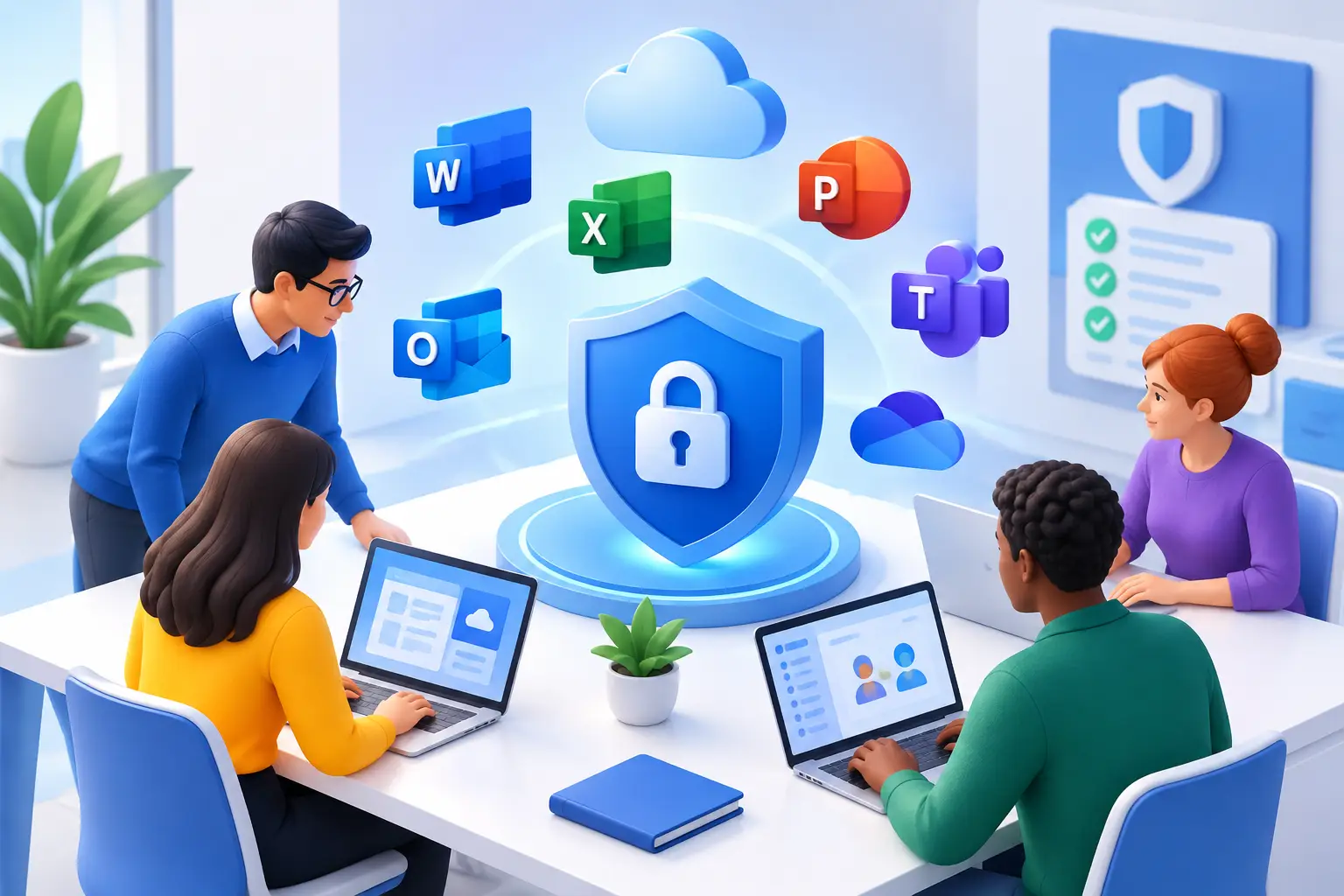
A convincing-looking invoice lands in a finance inbox at 8.43am. A volunteer clicks a shared-file request between meetings. A former employee’s account is still active months after leaving. These are the everyday moments a Microsoft 365 security guide needs to address – not just headline-grabbing cyber attacks.
For charities, community groups and growing businesses across Bradford, Leeds and Halifax, Microsoft 365 is often the engine room for email, documents, Teams calls and shared calendars. It can be a very safe place to work, but only when the settings, people and devices around it are properly looked after. The aim is not to make life difficult for staff. It is to stop one rushed click or forgotten account becoming a costly disruption.
Start with the accounts that hold the keys
Most Microsoft 365 incidents begin with a compromised account. Once a criminal has access to a genuine mailbox, they can read conversations, reset passwords for other services, send believable payment requests and search for sensitive files. That is why identity protection deserves attention before almost anything else.
Multi-factor authentication, often shortened to MFA, should be switched on for every user. It asks someone to prove it is really them after entering their password, usually through an authenticator app, a notification or a security key. An authenticator app is generally safer than relying on text messages, though the right choice depends on your team and what they can use confidently.
Do not stop at switching it on. Make sure staff understand why they may receive a prompt and that they should never approve one they did not initiate. Criminals increasingly use “MFA fatigue” tactics, repeatedly sending prompts in the hope that somebody taps approve just to make them disappear.
Passwords still matter too. Encourage long, unique passphrases rather than complicated but memorable patterns that get reused. A password manager can help people use different passwords without resorting to spreadsheets, notebooks or the same variation everywhere.
Keep administrator access tightly controlled
Administrator accounts can change settings, create users and access large parts of your Microsoft 365 environment. They should not be used for routine email and document work. Give people only the level of access they genuinely need, and review that access regularly.
It is sensible to have at least two protected global administrator accounts, held by trusted people, so the organisation is not locked out if one person is unavailable. These accounts need especially strong protection, including MFA. Avoid shared administrator logins altogether: if everyone uses the same account, there is no reliable record of who made a change.
A Microsoft 365 security guide must put email first
Email is where most organisations feel cyber risk most sharply. Phishing messages can imitate Microsoft, suppliers, trustees, senior managers or colleagues. They may ask someone to sign in, open a document, change bank details or buy gift cards. Some are poorly written. Others are remarkably convincing.
Microsoft 365 has tools to filter suspicious messages, harmful attachments and spoofed addresses, but they need sensible configuration and ongoing review. Your team should also know that a message appearing to come from a familiar person is not proof it is genuine.
Build a simple reporting culture. Staff should be comfortable asking, “Does this look right?” before they click. They should be praised for raising a concern, even if the message turns out to be harmless. That response matters far more than making people feel embarrassed.
For payment changes or urgent requests from a director, set a clear second-check process. A phone call to a known number or confirmation through another trusted channel can prevent a serious loss. Never use contact details supplied in the suspicious email itself.
It is also worth checking whether your domain has the right email authentication records in place. These help receiving systems recognise authorised messages from your organisation and make it harder for others to impersonate you. This is technical work, but it has a practical purpose: protecting your reputation and reducing fraudulent email sent in your name.
Share files with care, not fear
OneDrive and SharePoint make collaboration much easier, particularly for teams spread across offices, homes and community venues. The trade-off is that file sharing can become overly open if nobody is keeping an eye on permissions.
A good starting point is to share with named people rather than using anonymous “anyone with the link” access for sensitive information. Review external sharing settings, especially in folders containing client records, HR documents, financial information or safeguarding material. Give access for a purpose and remove it when that purpose ends.
This does not mean every document needs a locked-down approval process. A public event poster and a spreadsheet containing beneficiary information need very different treatment. Classifying information by its sensitivity helps teams make sensible decisions without slowing down everyday work.
Be clear about where documents should live. Important organisational files should normally be stored in the appropriate shared SharePoint or Teams area, rather than in one person’s personal OneDrive. If a staff member leaves, a well-organised shared workspace keeps the organisation moving.
Secure the devices connecting to Microsoft 365
A protected account can still be put at risk by an unpatched laptop, a lost phone or an old computer used by someone who has left. Your Microsoft 365 security plan needs to include the devices people use to access it.
Keep operating systems, browsers and key applications updated. Enable full-disk encryption on laptops so a lost device does not automatically expose its contents. Screen locks, sensible time-out settings and reputable endpoint protection provide another layer of defence.
Where your Microsoft 365 licence supports it, device management policies can help make sure only suitably protected devices access organisational data. This may include requiring a PIN on mobile devices, preventing downloads to unmanaged machines or allowing a lost work phone to be wiped remotely.
There is a balance to strike. A small charity with volunteers using personal devices may need a lighter-touch policy than a business handling confidential commercial information every day. The priority is to understand the risk, agree clear rules and apply them consistently.
Joiners, movers and leavers need a routine
Security gaps often appear during ordinary staffing changes. Someone starts before their account is ready, so they borrow a colleague’s login. A role changes but old permissions remain. Someone leaves and their mailbox stays accessible because everyone is busy.
A straightforward joiner, mover and leaver process removes much of this risk. New starters should receive their own account, MFA set-up and a short explanation of the organisation’s security expectations. When responsibilities change, update their access rather than adding new permissions on top of old ones. When somebody leaves, disable their account promptly, remove access to shared systems and decide who needs access to their files and mailbox.
This process should include volunteers, contractors and temporary staff. They are often trusted members of the team, but trust does not replace good access control.
Know what is happening and prepare for the worst
Microsoft 365 records useful activity, including sign-ins, mailbox changes and file access. Reviewing alerts and audit information can reveal unusual behaviour early, such as a login from an unexpected location or suspicious forwarding rules added to a mailbox.
Mailbox forwarding deserves particular attention. Once an attacker gains access, they may create a hidden rule that forwards invoices or sensitive correspondence outside the organisation. Regular checks help catch this before it becomes a longer-term problem.
Back-up arrangements also need an honest conversation. Microsoft 365 protects its platform, but that does not necessarily mean you can instantly recover every deleted, overwritten or maliciously altered file in every scenario. Retention settings and an independent back-up service may be appropriate, depending on how important the data is and how quickly you would need it back.
Finally, write down a simple incident plan. It should say who to contact, who can reset accounts, how to isolate a device and when to tell your IT provider, insurer, bank, regulator or affected individuals. You do not need a thick manual that nobody opens. A clear one-page process is much more useful when the pressure is on.
A sensible first-month priority list
If your Microsoft 365 set-up has grown gradually, trying to fix everything at once can feel overwhelming. Start with the changes that reduce the most common risks:
- Turn on MFA for all users, with extra protection for administrator accounts.
- Review accounts, licences and permissions, including former staff and volunteers.
- Check external sharing and restrict access to sensitive folders.
- Strengthen email protection and give staff a clear way to report suspicious messages.
- Confirm devices are updated, encrypted and protected by appropriate security software.
- Test how you would respond to a lost device, compromised mailbox or accidental file deletion.
After that, review your position regularly rather than treating security as a one-off project. Licences change, staff change and cyber criminals change their methods. A quarterly check-in is often enough to spot issues before they turn into trouble.
For organisations working towards Cyber Essentials, these practices also provide a useful foundation. The scheme is not merely a badge for the website. Done properly, it gives your team practical controls around accounts, devices, updates and malware protection.
Good Microsoft 365 security should feel like a well-run office: people can get on with their work, information is where it should be, and there is a clear response when something does not look right. If you would like a patient second pair of eyes on your set-up, give Bees Knees IT a buzz – taking the sting out of IT starts with making the essentials manageable.




Leave A Comment